





















When a job takes several days, like a solar install or a large renovation, it becomes a struggle to stay organized. In the past, you usually had to choose between two options:
The first method is creating separate tasks for every day. This leads to what I call “information silos,” where records from Day 1 are in a different place than the records from Day 3. The second method is creating one giant “multi-day” task block. While this keeps the data together, it creates a massive, solid block on the calendar that hides your crew’s actual availability, making it impossible to schedule smaller jobs during their downtime.
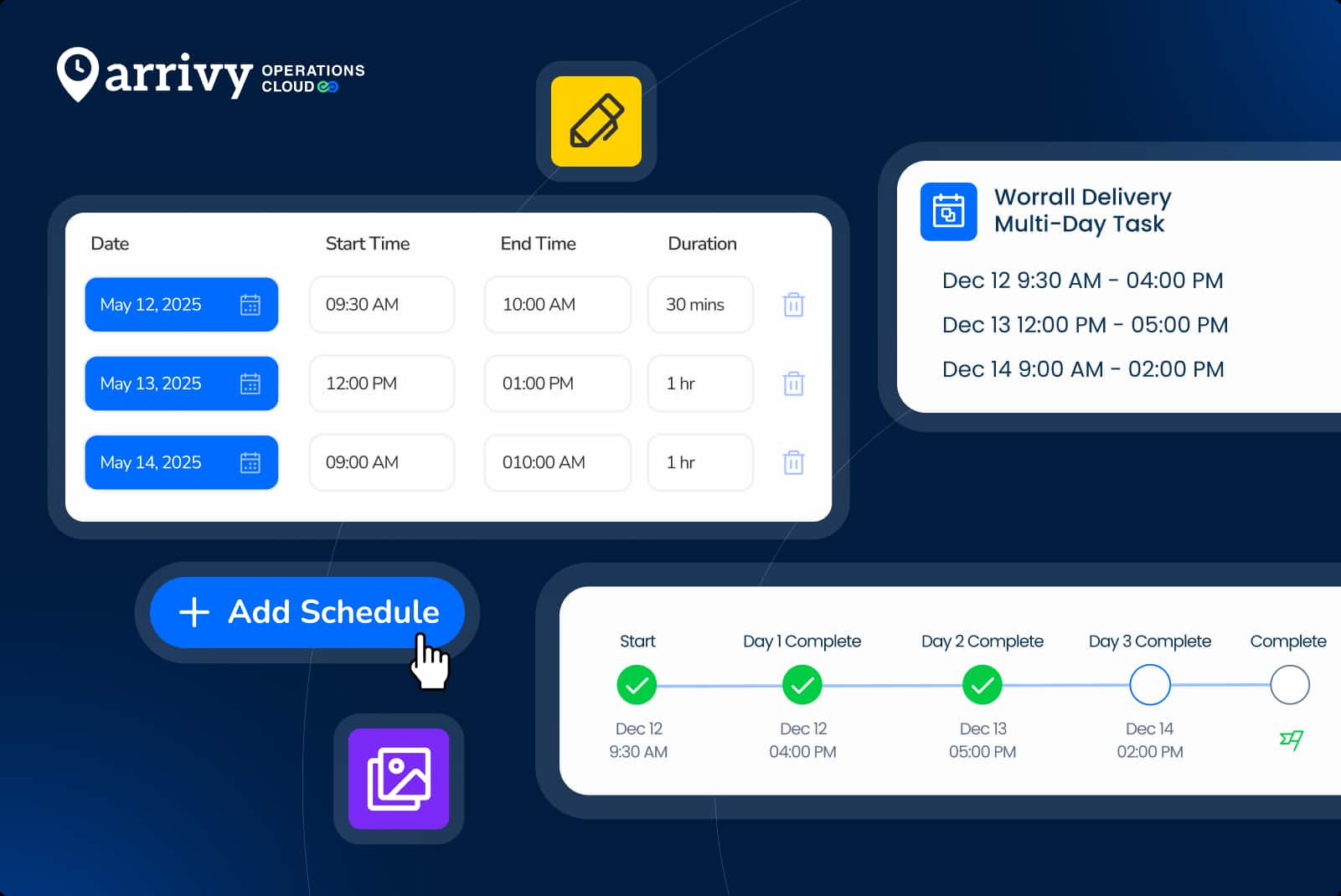
Arrivy’s Multi-Schedule Task gives you a better way. You can now schedule one single job across multiple dates and times. It keeps your calendar accurate and ensures all your project data stays in one place.
Why Centralized Data Matters?
If you create five separate tasks for a one-week project, you end up with five different journals and five sets of photos. It’s hard to get a clear picture of the project’s progress when the information is scattered.
With a Multi-Schedule Task, there is only one journal. Whether your crew is on Day 1 or Day 5, they are adding notes and photos to the same timeline. This makes it easy for the office to review the entire history of the job without jumping between different screens.
Multi-Schedule vs. Linked Tasks: Choosing the Right Tool
One of the most important parts of keeping your system clean is knowing which task type to use for which situation. We often see teams confuse “Multi-Schedule” tasks with “Linked” tasks. While they both connect work, they serve very different operational purposes.
Linked Tasks: For Phased Work
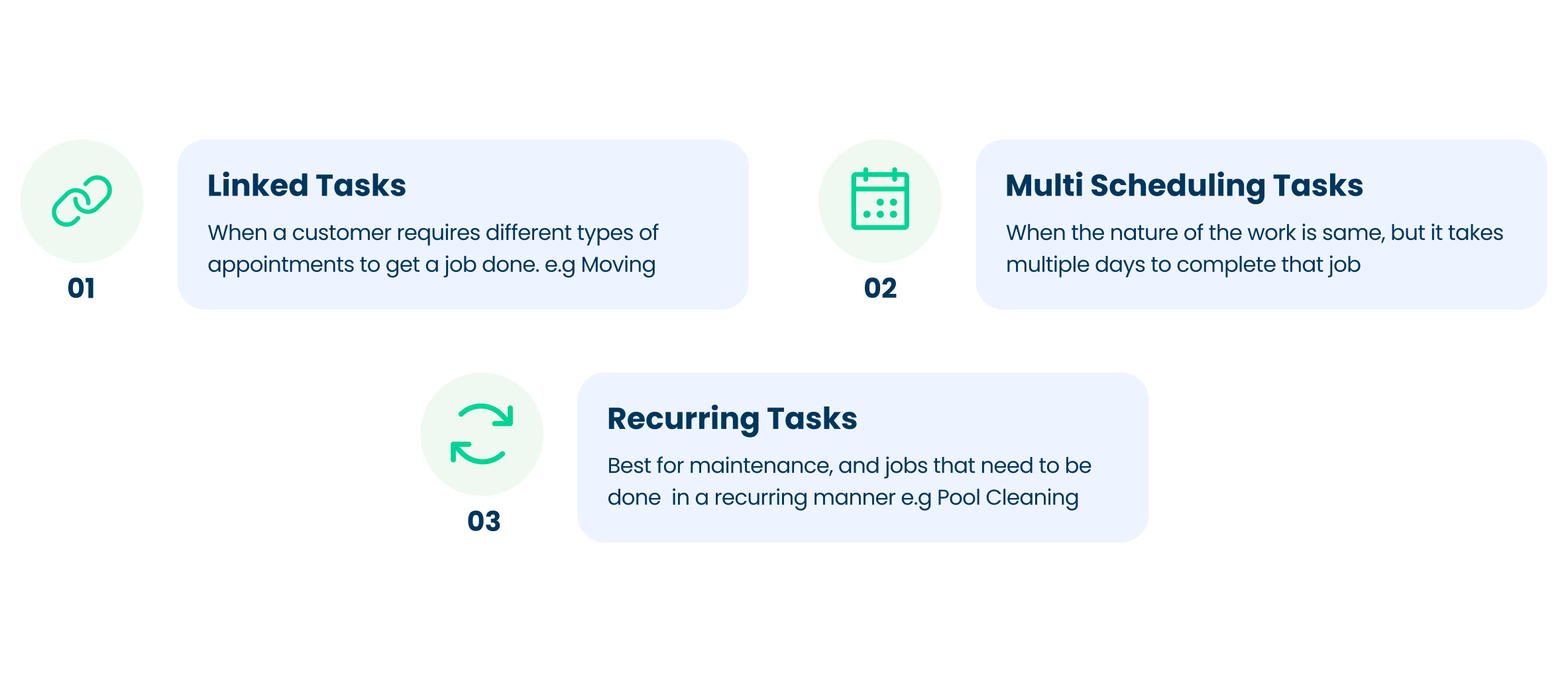
Linked Tasks are best when a customer requires different types of appointments to get a job done. A classic example is the moving industry. A mover might have an Estimate on Monday, Packing on Wednesday, and the Actual Move on Friday.
Multi-Schedule Tasks: For Long Work
Multi-Schedule Tasks are for when the work itself is the same, it just takes a long time. For example, if that “Move” from the example above takes three days because the house is massive, you don’t want three separate tasks. You want one “Move” task that shows up on the calendar for three days.
Recurring Tasks: For Maintenance
Recurring tasks are for visits that are identical and independent. If you are doing a monthly pool cleaning or a quarterly pest control spray, these are not part of one single “project.” They are separate events that happen to repeat. Using a Multi-Schedule task for these would be a mistake because you usually want to invoice and close out each visit individually.
| Job Description | Use This Task Type |
|---|---|
| 3-Day Solar Installation | Multi-Schedule Task |
| 5-Day Commercial HVAC Retrofit | Multi-Schedule Task |
| Estimate → Install → Inspection | Linked Tasks |
| Bi-Weekly Landscaping | Recurring Tasks |
| Moving: Pack → Storage → Unpack | Linked Tasks |
Why This Improves Dispatching Efficiency
For a dispatcher, the biggest headache with multi-day work is knowing exactly when a crew is actually “on-site” versus when they are just “on the project.”
1. Visibility of Gaps
If you book a standard multi-day task from Monday to Wednesday, the calendar often shows that crew as “Busy” for the entire 72-hour window. However, the crew might only be needed on-site from 8 AM to 12 PM each day.
With Multi-Schedule Tasks, those 4-hour windows are blocked individually. This leaves the afternoon wide open on the dispatcher’s view. If a high-priority repair call comes in, the dispatcher can see that the crew is free in the afternoon and book them for a quick win, increasing the company’s total billable hours without overworking the team.
2. Smart Conflict Detection
Assigning a crew to a 5-day project used to require manually checking five different days on the calendar to make sure they didn’t have a personal commitment or another short job already booked.
Now, when you assign a crew to a Multi-Schedule Task, Arrivy’s system automatically audits every single slot in that project. If there is a conflict on even one of those days, the system alerts you immediately to prevent double-booking.
Improving the Field Crew Experience
If field crews have to navigate through multiple tasks to find information from the day before, they are wasting time that should be spent on the tools. Here’s how the Multi-Schedule Task solves this problem.
The “Day Start” Workflow
In a Multi-Schedule Task, we don’t expect the crew to mark the job as “Complete” at the end of Day 1. Instead, they use the Day Start and Day Complete buttons.
Day Complete: Clocks them out for the day, but keeps the project open.
This workflow ensures that labor hours are tracked accurately for every shift, while the overall “Task Status” remains “In Progress” for the duration of the project.
Professionalism for the Customer
Your customers don’t care about your internal task structures. All they want is clear communication. If they receive three different confirmation emails with three different links for one solar install, it feels disorganized.
The Unified Live Track Link
With a Multi-Schedule Task, the customer receives one link. When they open it, they see a clean, organized list of every scheduled visit. They can see exactly when the crew is expected on Monday, Wednesday, and Friday. This transparency reduces “no-show” anxiety and significantly cuts down on the number of status-update phone calls your office has to handle.
Flexible Changes and Reporting
In the field, things change. A 3-day project can easily become a 4-day project due to weather or supply chain delays.
1. Extending the Project
If you need an extra day, you don’t have to “duplicate” a task or create a new one from scratch. You simply open the existing task, click + Add Schedule, and pick a new date. The crew’s calendar is updated instantly.
2. Unified Reporting
When it comes time to review the job’s profitability, you don’t have to add up five different reports. Arrivy provides a single task report that aggregates all the labor hours and materials used across the entire project duration. You can see at a glance if the job stayed under the estimated time or if specific days were less efficient than others.
Final Thoughts
By moving away from fragmented tasks and solid multi-day blocks, you give your office better data and your crews a more accurate schedule. Multi-Schedule Tasks aren’t just a new feature; they are a smarter way to manage the reality of complex field service work.
Ready to simplify your long-term projects?
Start using Multi-Schedule Tasks today to keep your office organized and your crews on track.