 Login
Login




















AI Summary
Job photos are among the most valuable records a field service business creates. They document completed work, support warranty and insurance claims, help resolve customer disputes, and provide visual evidence for service reports.
They are also some of the easiest records to misplace. Photos may be attached to individual jobs, stored on technicians’ phones, or shared through messaging apps. Without a consistent process for moving them into Google Drive, office teams are left manually collecting, uploading, and organizing files across different jobs.
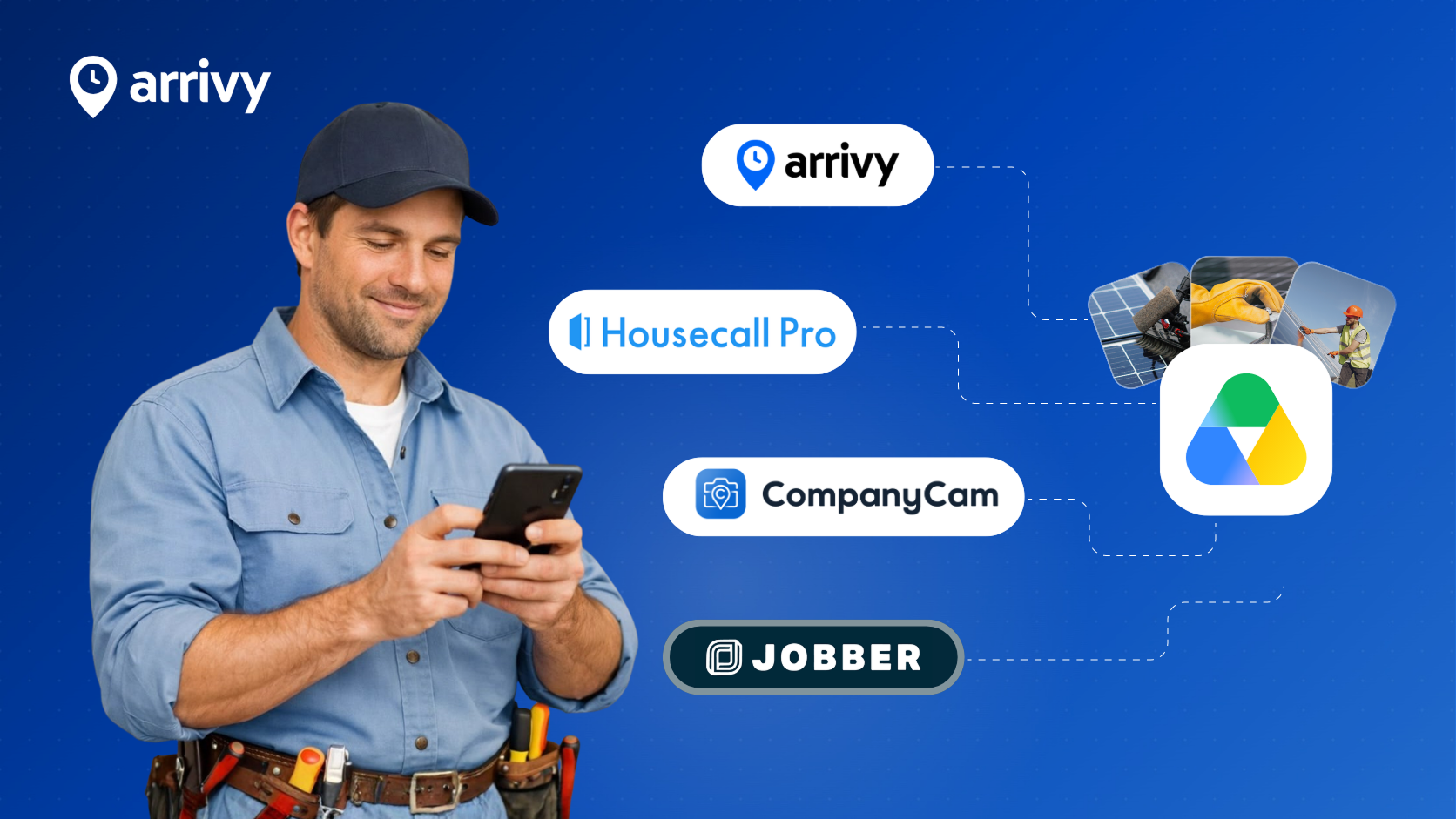
That’s where field service software with Google Drive integration becomes useful. This guide compares four field service and photo documentation platforms—Arrivy, CompanyCam, Jobber, and Housecall Pro—and explains what to evaluate before choosing a photo-sync workflow.
The 7 Criteria That Decide Whether Photo Sync Works
A Google Drive integration is only useful when the right photos reach the right destination and remain easy to retrieve. Here are seven factors to evaluate when comparing field service apps for photo backup and documentation.
1
Photo Resolution and Quality
Job photos are often used for insurance claims, warranty issues, and damage reports. Whether it’s a damaged roof or an equipment serial number, the details need to be clear.
Some software may reduce photo quality during upload. Compare the photos in Google Drive with the originals to check their size, dimensions, and clarity. Remember that a smaller file size doesn’t always mean lower image quality.
Job photos are often used for insurance claims, warranty issues, and damage reports. Whether it’s a damaged roof or an equipment serial number, the details need to be clear.
Some software may reduce photo quality during upload. Compare the photos in Google Drive with the originals to check their size, dimensions, and clarity. Remember that a smaller file size doesn’t always mean lower image quality.
2
Automatic Folder Organization
Storing hundreds of photos in one Google Drive folder makes it difficult to find what you need. Look for software that automatically creates folders for each customer, job, or project.
For example, a landscaping company might organize photos by property, with separate folders for inspections, completed work, and maintenance visits. Clear folder names make it easier to find the right photos without sorting through files manually.
Storing hundreds of photos in one Google Drive folder makes it difficult to find what you need. Look for software that automatically creates folders for each customer, job, or project.
For example, a landscaping company might organize photos by property, with separate folders for inspections, completed work, and maintenance visits. Clear folder names make it easier to find the right photos without sorting through files manually.
3
Photo Metadata and Job Context
A photo is more useful when you know when and where it was taken, who took it, and which job it belongs to. This information may be stored in the photo itself, its filename, folder, or job record. Check whether the software keeps or provides access to:
A photo is more useful when you know when and where it was taken, who took it, and which job it belongs to. This information may be stored in the photo itself, its filename, folder, or job record. Check whether the software keeps or provides access to:
- Date and time
- Customer or job details
- Technician information
- Location, when available
- Related forms or inspection records
These details make it easier to track work, handle warranty claims, and find records later.
4
Duplicate Photo Handling
Duplicate photos can appear when someone submits a form again, an upload is retried, or a completed form is updated. Over time, this can make folders harder to manage.
Check what happens when the same photo is uploaded more than once. Does the software replace the existing file, save a new version, or create a duplicate? The result may depend on how the integration is set up.
Duplicate photos can appear when someone submits a form again, an upload is retried, or a completed form is updated. Over time, this can make folders harder to manage.
Check what happens when the same photo is uploaded more than once. Does the software replace the existing file, save a new version, or create a duplicate? The result may depend on how the integration is set up.
5
Offline Photo Capture and Synchronization
Field crews don’t always have a reliable internet connection. The software should let them take photos and complete forms even when they’re offline.
Check two things:
Field crews don’t always have a reliable internet connection. The software should let them take photos and complete forms even when they’re offline.
Check two things:
- Offline capture: Can technicians save photos and forms without internet access?
- Automatic sync: Does the information sync when the connection returns, and how does it reach Google Drive?
The goal is to keep work moving without requiring technicians to upload everything manually afterward.
6
Failed Upload Recovery
Photo uploads can fail because of internet problems, expired Google account permissions, or changes to Drive folders.
Check whether the software retries failed uploads, notifies your team when something goes wrong, and helps you find missing files. This makes it easier to fix problems before important photos are needed.
Photo uploads can fail because of internet problems, expired Google account permissions, or changes to Drive folders.
Check whether the software retries failed uploads, notifies your team when something goes wrong, and helps you find missing files. This makes it easier to fix problems before important photos are needed.
7
Customer Access to Photos
Customers may need photos to check job progress, review damage, or confirm completed work. Some software lets you share photos through Google Drive, while others offer customer portals or built-in sharing tools.
Look for a solution that makes photos easy to share while ensuring customers can only access files related to their own jobs.
Customers may need photos to check job progress, review damage, or confirm completed work. Some software lets you share photos through Google Drive, while others offer customer portals or built-in sharing tools.
Look for a solution that makes photos easy to share while ensuring customers can only access files related to their own jobs.
Quick Comparison: Field Service Software That Connects Job Photos to Google Drive
The following comparison focuses on how each platform connects with Google Drive, what documentation can be transferred, and whether additional automation is necessary.
| Platform | Google Drive Integration | Folder Organization | Photo Transfer | Best For | |||||
|---|---|---|---|---|---|---|---|---|---|
|
Direct integration
|
Automatic task and form folders |
Digital Form photos and supported documents
|
Field operations and documentation |
|||||
|
Direct integration
|
Automatic project folders
|
Project photos, videos, and files
|
Dedicated jobsite photo management |
|||||
|
Third-party automation
|
Folders through Zapier
|
Automatic attachment transfer requires verification
|
Service businesses using Jobber |
|||||
|
Third-party automation
|
Folders through Zapier
|
Automatic attachment transfer requires verification
|
Home-service businesses using Housecall Pro |
4 Best Field Service Platforms for Google Drive Photo Sync
1
Arrivy - Best for Connecting Field Documentation With Google Drive
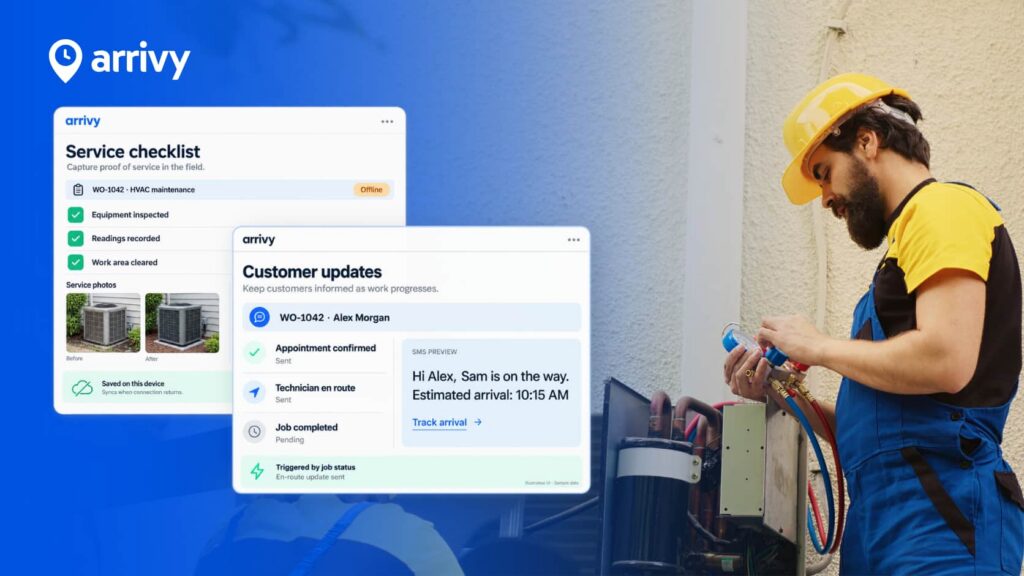
Arrivy is a field service and operations management platform that combines scheduling, dispatch, crew tracking, customer communication, and job documentation.
Its native Google Drive integration automatically transfers supported field photos, completed Digital Forms, and stitched PDFs into organized Drive folders.
By default, Arrivy creates a main folder with individual task folders and separate subfolders for associated forms. Businesses can customize folder naming and storage paths with assistance from Arrivy’s support team.
Crews can capture photos within Arrivy’s Digital Forms while completing inspections, service reports, or job checklists. Forms can be completed offline, with captured information syncing to Arrivy when connectivity returns. Eligible documentation is then transferred to Google Drive according to the configured integration workflow.
Photos and supporting documents remain associated with the relevant task in Arrivy, allowing teams to access records in the context of the work performed.
Why we included it: Arrivy connects photo documentation with the actual field service workflow. Businesses can manage tasks, collect structured records, and automatically store supported documentation in Google Drive without creating a separate Zapier workflow.
Arrivy is a field service and operations management platform that combines scheduling, dispatch, crew tracking, customer communication, and job documentation.
Its native Google Drive integration automatically transfers supported field photos, completed Digital Forms, and stitched PDFs into organized Drive folders.
By default, Arrivy creates a main folder with individual task folders and separate subfolders for associated forms. Businesses can customize folder naming and storage paths with assistance from Arrivy’s support team.
Crews can capture photos within Arrivy’s Digital Forms while completing inspections, service reports, or job checklists. Forms can be completed offline, with captured information syncing to Arrivy when connectivity returns. Eligible documentation is then transferred to Google Drive according to the configured integration workflow.
Photos and supporting documents remain associated with the relevant task in Arrivy, allowing teams to access records in the context of the work performed.
Why we included it: Arrivy connects photo documentation with the actual field service workflow. Businesses can manage tasks, collect structured records, and automatically store supported documentation in Google Drive without creating a separate Zapier workflow.
Key Features:
Pros:
-
Less time spent collecting and organizing job photos manually.
-
Easier to find photos alongside their related job records.
-
Consistent documentation across multiple crews and jobs.
-
Offline forms keep work moving in areas with poor connectivity.
-
No separate automation subscription needed for supported Drive workflows.
Cons:
-
Custom Google Drive folder setups may require assistance from Arrivy support.
-
May be more than needed for businesses looking only for photo storage.
Pricing:
- Standard: Starting at $25 per full-access user/month
- Premium: Starting at $50 per full-access user/month
- Enterprise: Custom pricing
- Trial: 14 days, no credit card required
Best for:
Field service businesses that want to capture job photos and structured field documentation while connecting their complete field service workflow with organized Google Drive storage.
For businesses that want both dedicated photo capture and broader field operations, Arrivy’s CompanyCam integration is another option worth evaluating.
2
CompanyCam - Best for Dedicated Jobsite Photo Capture and Backup
CompanyCam is a photo documentation platform that helps contractors capture, organize, annotate, and share jobsite photos and videos.
Its direct Google Drive integration automatically creates folders for new projects and syncs their photos, videos, and files without requiring Zapier. This makes it useful for roofing, construction, and restoration teams that need organized visual records.
However, synchronization is one-way, and projects created before the integration was connected are not automatically backed up to Google Drive.
Why we included it: CompanyCam is a strong alternative for businesses primarily concerned with jobsite photography and organization. Its direct Google Drive integration makes it suitable for project-based photo backup without needing Zapier.
CompanyCam is a photo documentation platform that helps contractors capture, organize, annotate, and share jobsite photos and videos.
Its direct Google Drive integration automatically creates folders for new projects and syncs their photos, videos, and files without requiring Zapier. This makes it useful for roofing, construction, and restoration teams that need organized visual records.
However, synchronization is one-way, and projects created before the integration was connected are not automatically backed up to Google Drive.
Why we included it: CompanyCam is a strong alternative for businesses primarily concerned with jobsite photography and organization. Its direct Google Drive integration makes it suitable for project-based photo backup without needing Zapier.
Key Features:
Pros:
-
Easy for crews to capture and organize photos on-site.
-
Less manual work when backing up new projects to Google Drive.
-
Useful for teams that rely heavily on visual job documentation.
-
Helps office staff review jobsite progress without requesting photos.
Cons:
-
Projects created before connecting Google Drive aren't backed up automatically.
-
Changes made in Google Drive don't sync back to CompanyCam.
-
A separate FSM platform may still be needed for daily operations.
-
Subscription costs may be difficult to justify for basic photo storage.
Pricing:
CompanyCam offers subscription plans with different feature allowances and integration eligibility. Confirm the required subscription and current pricing before purchasing.
Best for:
Roofing, construction, restoration, and other contractors that prioritize jobsite photography, visual documentation, and automatic project-based backup to Google Drive.
3
Jobber - Best for Service Businesses Managing Photos Within Job Records
Jobber is field service management software that combines scheduling, quoting, invoicing, and job documentation. Technicians can attach photos and files to job records, while its Files and Media library helps businesses access client attachments in one place.
Jobber connects with Google Drive through third-party tools such as Zapier, which can automate folder creation for new jobs or clients. However, automatic photo transfer is not confirmed by these workflows. Businesses can download attachments manually or in bulk from individual client libraries.
Why we included it: Jobber is relevant to businesses already capturing photos inside their service management workflow. It provides useful internal attachment organization, but a complete Google Drive photo-export workflow requires additional evaluation.
Jobber is field service management software that combines scheduling, quoting, invoicing, and job documentation. Technicians can attach photos and files to job records, while its Files and Media library helps businesses access client attachments in one place.
Jobber connects with Google Drive through third-party tools such as Zapier, which can automate folder creation for new jobs or clients. However, automatic photo transfer is not confirmed by these workflows. Businesses can download attachments manually or in bulk from individual client libraries.
Why we included it: Jobber is relevant to businesses already capturing photos inside their service management workflow. It provides useful internal attachment organization, but a complete Google Drive photo-export workflow requires additional evaluation.
Key Features:
Pros:
-
Easier to find client photos without searching through individual jobs.
-
File details help identify when and where photos were added.
-
Teams can download multiple files for one client at once.
-
Businesses already using Jobber can keep their existing workflows.
Cons:
-
Automatic photo backup to Google Drive isn't a confirmed built-in workflow.
-
The Files and Media library requires an eligible plan.
-
Bulk downloads are limited to one client at a time.
-
Setting up automatic photo transfers may require custom automation.
Pricing:
Jobber offers multiple subscription tiers, with feature availability and user allowances varying by plan.
Businesses should confirm Files and Media library eligibility, the required subscription, and any additional automation costs before choosing a Google Drive workflow.
Best for:
Service businesses already using Jobber that want photos connected to client and job records and are comfortable with client-level downloads or custom Google Drive automation.
4
Housecall Pro - Best for Home-Service Teams Sharing Job Photos With Customers
Housecall Pro is field service software for home-service businesses, offering scheduling, dispatch, invoicing, and customer communication.
Technicians can attach photos and documents to jobs, while its Photo Reports feature helps businesses create and share visual documentation with customers.
Housecall Pro connects with Google Drive through Zapier, including automations that create folders for scheduled jobs. However, these workflows do not establish automatic transfer of job photos to Drive, so businesses should verify the required photo-backup functionality separately.
Why we included it: Housecall Pro provides useful customer-facing photo documentation and sharing tools. It is worth considering for businesses prioritizing home-service operations, although its automatic Google Drive photo-export capabilities require further verification.
Housecall Pro is field service software for home-service businesses, offering scheduling, dispatch, invoicing, and customer communication.
Technicians can attach photos and documents to jobs, while its Photo Reports feature helps businesses create and share visual documentation with customers.
Housecall Pro connects with Google Drive through Zapier, including automations that create folders for scheduled jobs. However, these workflows do not establish automatic transfer of job photos to Drive, so businesses should verify the required photo-backup functionality separately.
Why we included it: Housecall Pro provides useful customer-facing photo documentation and sharing tools. It is worth considering for businesses prioritizing home-service operations, although its automatic Google Drive photo-export capabilities require further verification.
Key Features:
Pros:
-
Office staff can find customer photos without opening each job.
-
Photo reports make completed work easier to explain to customers.
-
Customers can receive selected photos without accessing internal records.
-
Mobile uploads can resume after an internet interruption.
Cons:
-
Automatic Google Drive photo backup isn't confirmed by the documented Zapier workflow.
-
A separate process may be needed to archive photos in Drive.
-
Photo Reports must be created and edited on the web, not in the mobile app.
-
Customer photo-sharing links expire after seven days.
Pricing:
Housecall Pro offers subscription plans for different business sizes, with features and user allowances varying by plan.
Businesses should confirm access to their required photo-documentation tools and include any external automation costs when evaluating the overall price.
Best for:
Home-service businesses that want to capture, organize, and share customer-facing job photos while evaluating Google Drive backup as a separate requirement.
Native Google Drive Integration vs. Third-Party Automation: Which Is Better for Job Photos?
A direct integration and a third-party automation can both be useful, but they do not necessarily provide the same photo-management experience. The differences become more important as teams capture larger volumes of photos.
1. Setup and Maintenance
Direct integrations offer predefined connections between applications. For example, Arrivy organizes supported documentation into task-based Google Drive folders, while CompanyCam creates project folders and syncs related content.
Third-party tools like Zapier offer greater flexibility but may require custom workflows to identify jobs, manage folders, and transfer photos. These workflows may also need maintenance as processes or settings change.
2. Photo Volume and Automation Costs
Field service teams can generate hundreds of photos weekly. Third-party automation costs may depend on the number of actions performed. Processing individual photos can require more automation activity than creating folders per job.
Direct integrations on the other hand eliminate separate automation subscriptions, although plan requirements and storage costs still matter.
3. Folder Organization
Effective photo management keeps files connected to the correct customer, task, or project. Arrivy and CompanyCam provide documented automatic folder structures. Custom automations offer more flexibility in folder naming, reuse, and file placement but require additional configuration.
4. Reliability and Failed Transfers
Neither approach guarantees error-free uploads. Authentication issues, connectivity problems, permission changes, and folder errors can disrupt transfers.
Before choosing, verify whether failed uploads can be retried, administrators receive error notifications, and missing files can be recovered.
How to Test Google Drive Photo Sync Before Choosing Software
Feature descriptions help narrow down software options, but a controlled trial using real job workflows offers more reliable evidence. Use the following seven-point checklist to evaluate whether a platform can meet your documentation requirements.
| Test What to Do What to Check | What to Do | What to Check | |||
|---|---|---|---|---|---|
|
Capture a detailed photo and inspect the uploaded copy. |
Image dimensions, legibility, and useful detail |
|||
|
Create two jobs for different customers. |
Separate folders, correct file placement, clear naming |
|||
|
Inspect synced files and related records. |
Capture date, job association, uploader, location where supported |
|||
|
Repeat a supported upload or update a completed form. |
Duplicate files, replacement, or version behavior. |
|||
|
Capture photos without internet, then reconnect. |
Successful platform sync and subsequent Drive delivery |
|||
|
Safely interrupt a test connection or destination. |
Error visibility, retries, and recovery options |
|||
|
Share selected documentation with a test recipient. |
Access to intended files only |
Additional questions to ask a vendor:
- Which photo sources can be transferred to Google Drive?
- Does the workflow require another paid automation service?
- Which subscription plan includes the required integration?
- Who can change folder naming or storage paths?
- Can administrators identify failed uploads?
- Are older jobs or existing photo libraries included?
- Does the platform meet the company’s file-retention requirements?
Why Arrivy Is Worth Considering for Your Field Service Business
For field service businesses, the challenge with job photos is often what happens after they’re taken. Finding the right images later can take more time than it should.
If your team regularly deals with this, Arrivy is worth considering. It allows crews to capture photos and supporting documentation as part of their daily job workflow, while its Google Drive integration organizes supported records into task-based folders. This means office teams spend less time collecting files from technicians or figuring out which photos belong to which job.
It’s particularly useful for businesses managing multiple crews or a growing number of daily appointments. Having photos tied to specific tasks makes it easier to review completed work, respond to customer questions, and retrieve documentation from previous visits. Arrivy Gallery also provides a centralized view of images and videos from tasks, forms, and other job records, with details such as timestamps and the source of each photo.
Arrivy is a practical choice if you want more than photo backup. It brings job documentation, field activity, and Google Drive storage into a more consistent process, without requiring your team to manage photos separately after every job.
Example: How a Landscaping Crew Can Organize Job Photos With Arrivy and Google Drive
Consider a landscaping company managing four crews responsible for residential maintenance, seasonal cleanups, and property improvements. Each crew captures photos to document property conditions before and after completing work.
Previously, technicians shared those photos through messaging apps, and the office manually transferred them into Google Drive. With Arrivy, the company can connect field documentation to the work already managed in its operations platform.
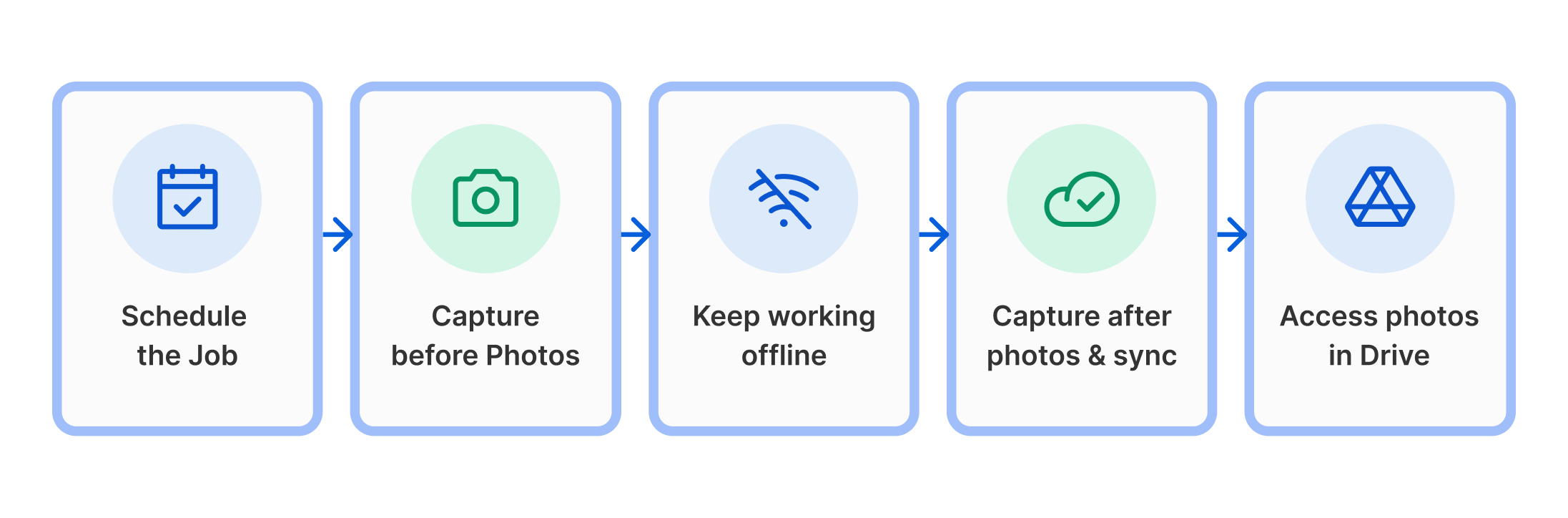
Step 1: Schedule the Job
The dispatcher creates a spring cleanup task in Arrivy and assigns it to the appropriate crew. The task includes customer information and Digital Forms for site inspection and work completion.
Step 2: Capture Before Photos
When the crew arrives, technicians open the relevant task and complete a site inspection form. They photograph the lawn, garden beds, walkways, and areas requiring attention. The images are captured as part of the task’s field documentation.
Step 3: Continue Working Without Connectivity
If mobile connectivity is unavailable, technicians can use Arrivy’s offline Digital Forms to capture photos and record inspection details. They do not have to stop work just because the site has limited coverage.
Step 4: Complete the Job Documentation
After finishing the cleanup, the crew records completion details and captures after photos. When the device reconnects, offline data synchronizes with Arrivy. The configured Google Drive integration can then transfer eligible documentation according to its upload rules.
Step 5: Access Organized Photos in Google Drive
With Arrivy’s default folder mapping, documentation is organized within the Arrivy folder, under the corresponding task and form folders. The office can locate the cleanup records without searching employee messages or manually collecting photos.
When the customer requests completion evidence, staff can retrieve the relevant documentation and share the appropriate files.
The workflow combines job execution, field documentation, and organized storage without introducing a separate manual photo-upload proce